HTC Vive with OpenXR (Unreal SDK)
OpenXR is the standard, supported way to run AR 51 on VR in Unreal — one plugin (AR51SDK_OPENXR) covers both HTC Vive and Meta Quest. The older dedicated Wave and Oculus plugins are legacy.
Follow the "New Project" instructions from the Vive OpenXR website
Follow the instructions from the HTC website to set up your project
Make Sure to install "Vive Business Streaming" and "SteamVR"
Ensure that your project is compatible with HTC’s hand-tracking guidelines
Follow the instructions from the vive unreal hand tracking guidelines to setup up your project
Enable OpenXR and OpenXRHandTracking plugins
In Unreal-Engine, under plugins, make sure that the openXR and that the openXRHandTracking is checked.
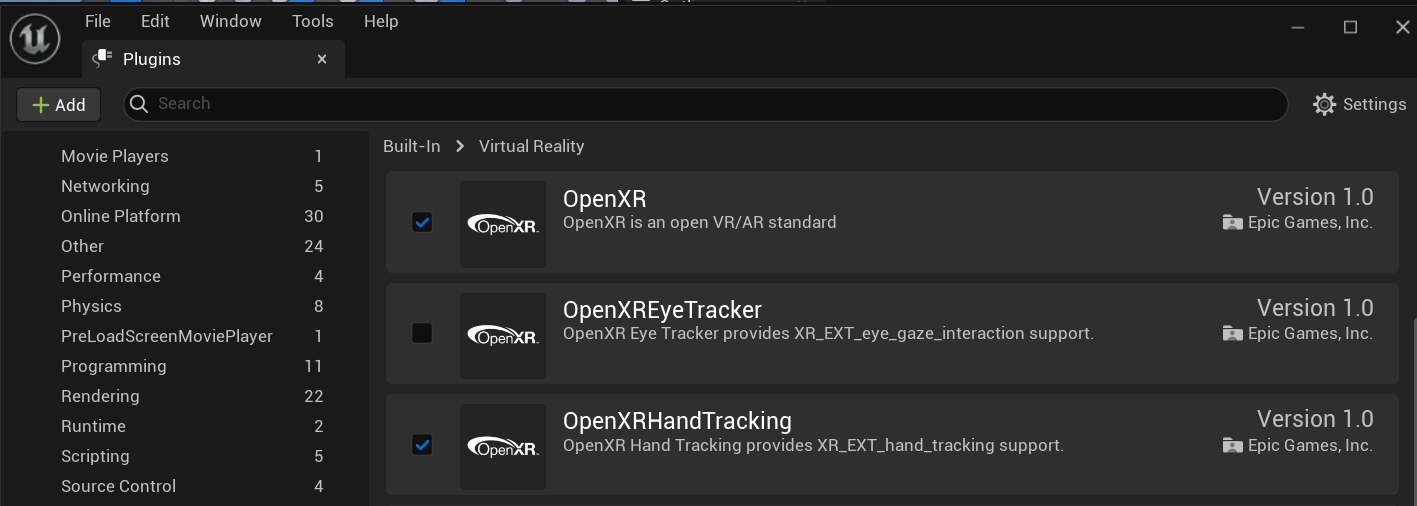
Disable Oculus Related plugins and the SteamVR plugin
In Unreal-Engine, under plugins, make sure that other non-openXR plugins are disabled.
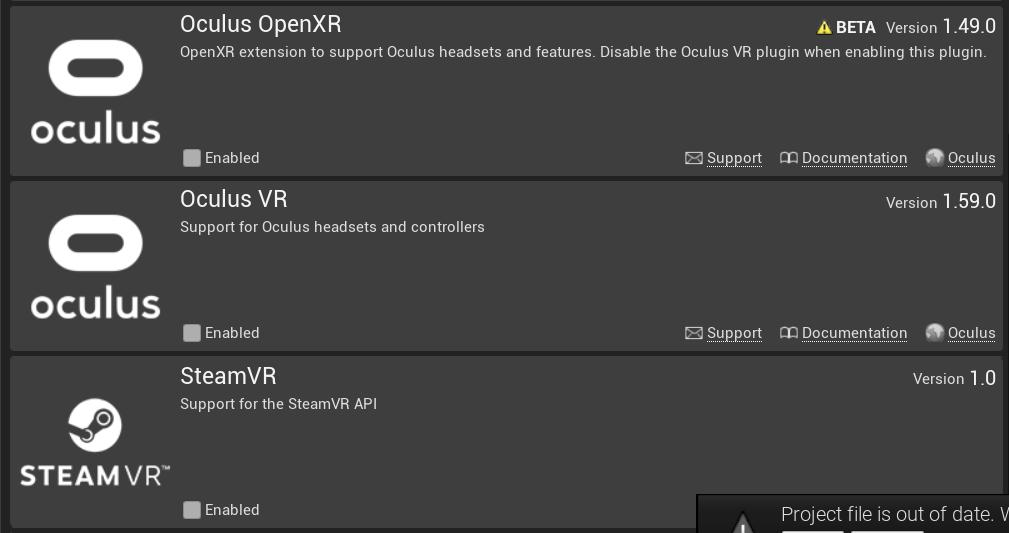
Make Sure you disable the "SteamVR Plugin", otherwise the hand movement will not be recognized correctly.
Make sure that you PC-VR streaming is working correctly
On your pc open both SteamVR and Vive Business Streaming apps.
In Vive Business Streaming make sure that "Hand Tracking" is checked
Open the settings in the "Vive Business Streaming" app.
Under "Input" make sure "Hand tracking" checkbox is checked. 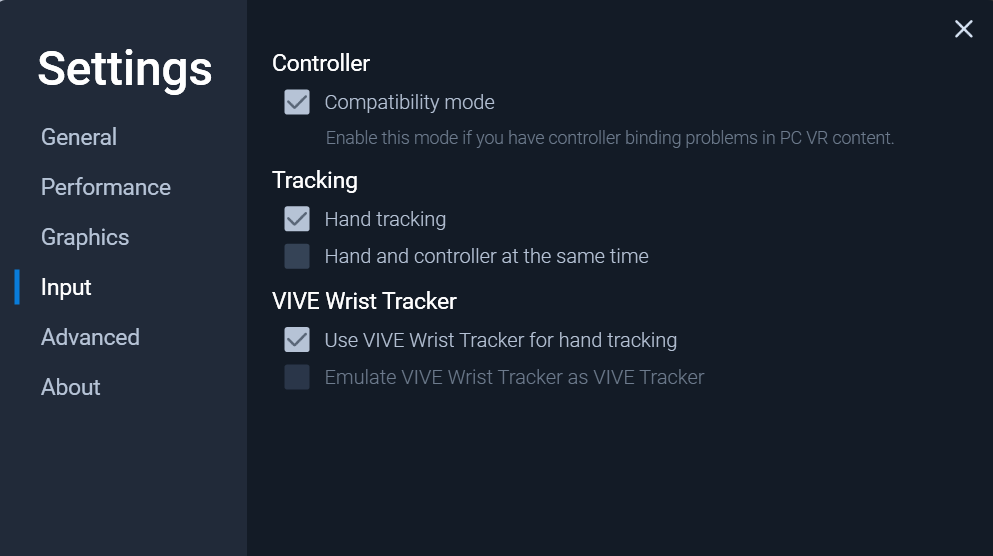
Hand Tracking must be enabled on VBS in order to track finger motion.
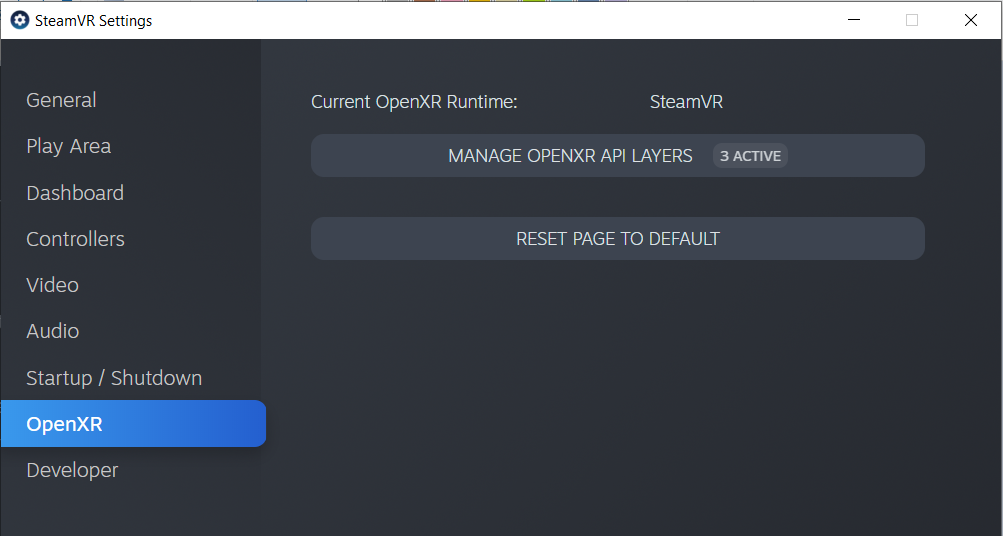
In SteamVR, make sure that the openXR backend is set to SteamVR.
Open SteamVR settings.
Under "OpenXR" make sure that your current OpenXR Runtime is set to SteamVR.
Try to deploy a simple level to your headset
Try and build the project and deploy it to your headset.
Download and extract AR 51 Unreal-SDK Plugin and AR 51 OpenXR Plugins into the Plugins folder
Your plugins folder should look like this 
Restart the editor to enable the plugins.
Create a new level
File -> New Level -> Basic
Be sure to set the visibility of the plugins to True
In the Content Browser window. Select settings and enable "Show Plugin Content"
Drag the AR 51 SDK Blueprint into the current level
From the "Content Browser" windows, select Plugins -> AR 51 SDK Content -> Blueprints and drag "AR51SDK_Blueprint" into the level.
Drag the AR 51 OpenXR-related Blueprints into the current level
From the "Content Browser" windows, select Plugins -> AR51SDK_OPENXR Content -> Blueprints and drag: "VRPawn", "OpenXrBoundary Adapter_BP" and "OpenXrHands Adapter_BP" into the level.
Make sure your VrPawn object uses "stage tracking"
Either create a new VRPawn object (using these instructions) or edit the provided VRPawn Blueprint.
Make sure that your tracking space is set to “Stage” 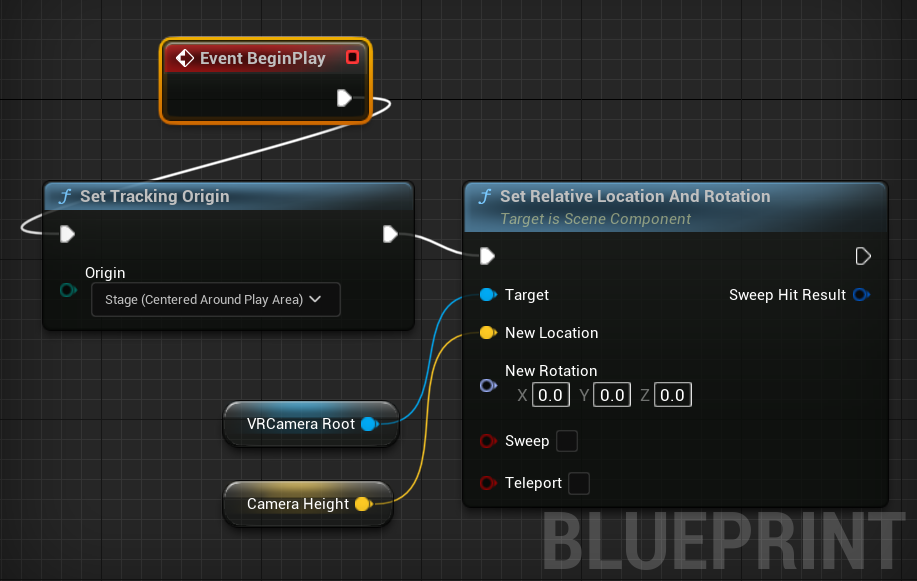
If you do not set the tracking mode to “Stage”, the skeleton will not appear on your body once you restart the VR application.
In AR 51 Blueprint, select "HtcVive" as the platform type
From the Details panel, under “General”, you should see the "Platform" field. Please select "HTC Vive" 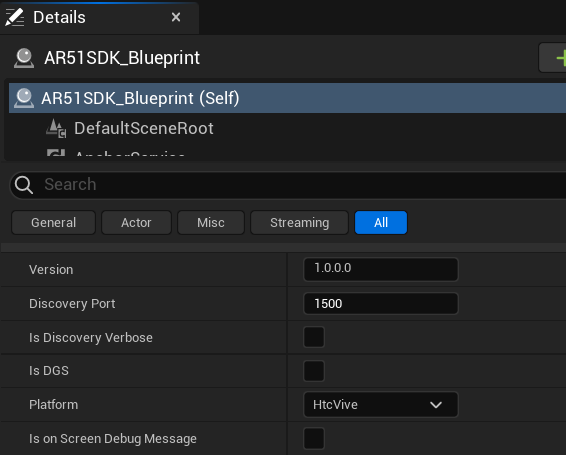
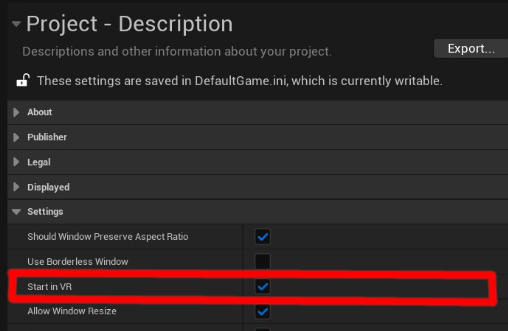
In a tethered deployment - enable "Start in VR"
Before deploying to a tethered application (PC VR app), be sure that you project is set to start in VR.
In Unreal-Engine, under "Project Settings" -> "Project Description" enable "Start in VR".
Hit Play
Make sure that AR 51's system is running on the same local network as your device.
You should see the character move in realtime 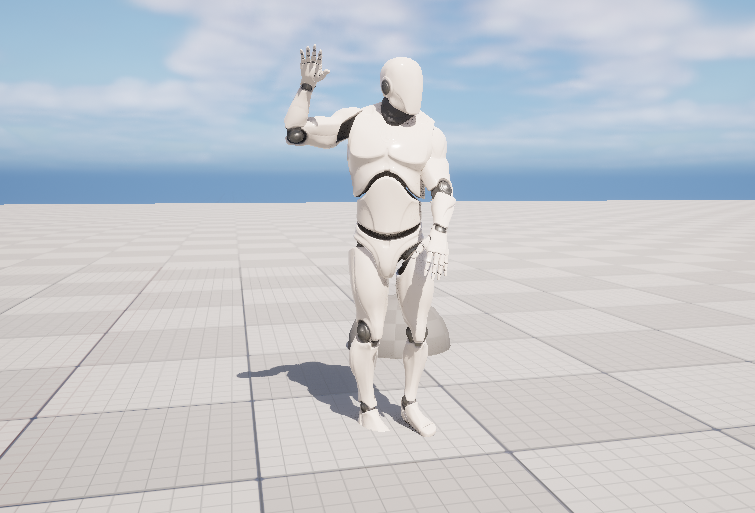 .
.
On your first run, perform device calibration
You should now perform device calibration so that the character would position on your body.