Oculus Quest (Unity SDK)
This page covers the older Oculus Integration setup. For Meta Quest 3 on Unity SDK 3.0.3.2R or newer, follow Build it yourself instead — it uses the Meta XR packages and adds automatic Headset Calibration, which aligns the headset with the capture space with no calibration procedure, tethered or standalone.
Download the Oculus Integration Package
Please Download and import the Oculus integration package for Unity.
The system was tested thoroughly using oculus integration version 43.0. If you experience any problems during the tutorial it is recommended to use this version.
Follow the "New Project" instructions from the Quest website
Import the Oculus integration package and follow the instructions from the quest website to set up your project.
Try to use the "Oculus Setup Tool" under Oculus -> Tools -> "Oculus Setup Tool" and fix all the issues.
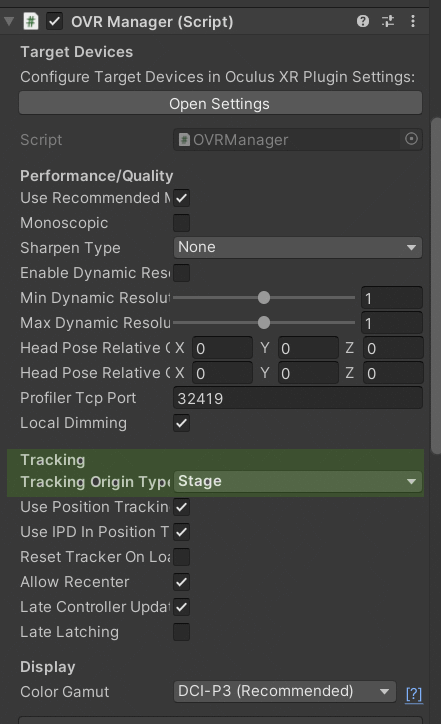
Select Stage under "Ovr Manager"
Open the OVRCameraRig Object.
In the "OVR Manager" component set "Tracking Origin Type" to "Stage"
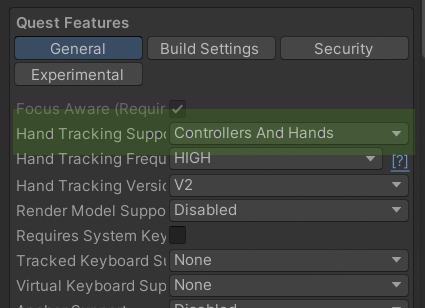
Enable Hand Tracking under "Ovr Manager"
Open the OVRCameraRig Object.
In the "OVR Manager" component set "Hand Tracking Support" to "Hands Only" or "Controllers And Hands"
Drag the SDK prefab into the scene
From Assets/AR51.Unity.SDK/Prefabs drag the AR51.Unity.SDK prefab into the scene.
Select the target platform
In the "Service Manager" component select "Oculus Quest" as the platform of your choice.
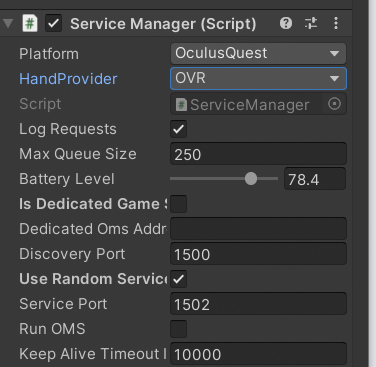
Select the hand provider
Select "OVR" as the hand provider in the "Service Manager" component.
Set the world pivot
The system automatically maps the coordinate system of every quest to a common coordinate system.
This enables a shared experience where multiple players share the same world.
For the players to experience the same place, every object that the player can interact with needs to be mapped as well.
Create a new Game Object and add the "World Anchor Constraint" component.
Place all game objects that the player interacts with as child objects of this new object.
Build and deploy the app to the Oculus Quest
Build the project and deploy it on your devices.
By default, the application will reside under "Unknown Sources" in the quest apps menu.