Web Dashboard Sample — A Complete AR51.Net App
The web dashboard is the largest AR51.Net sample: a complete ASP.NET Core app that shows a live 3D view of the tracked people and objects, live camera previews, and controls for servers, cameras, calibration, recording and devices. It puts the patterns from Use it in your app together in one place: one long-lived client, push to the browser, polling where needed, and one shared preview stream per camera.
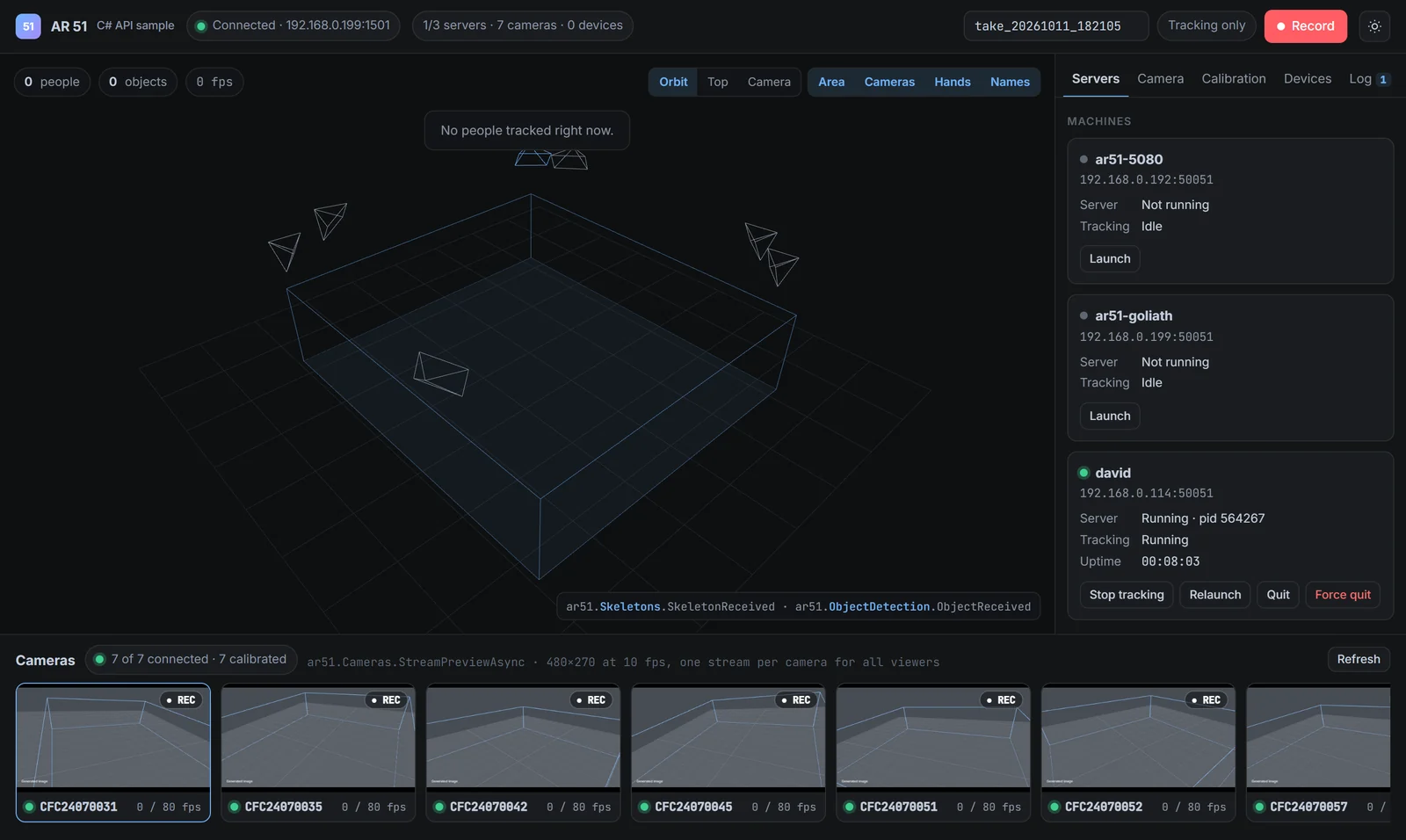
The dashboard connected to a 7-camera AR 51 system. Camera images are generated for this page; the app shows the cameras' live images.
Run it
You need the .NET 8 SDK or later and an AR 51 system on your local network.
git clone https://bitbucket.org/ar51/ar51-net-samples.git
cd ar51-net-samples/09-web-dashboard
dotnet run
Then open http://localhost:5051. The app finds the AR 51 system on the local network by itself. The JavaScript libraries are bundled in the sample, so it also works on a control-room network without internet access.
:::warning No login
The sample has no login: anyone who can open the page can quit servers, start a calibration, record or change camera settings. It listens on localhost only, so only the computer it runs on can open it. Add authentication before you change Urls to make it reachable from other computers. See Security.
:::
What it shows
| Part of the page | What you see and do |
|---|---|
| Top bar | Connection state and server address, server/camera/device counts, a take name, and the Record button |
| 3D view | Tracked people (with hands from hand-tracking headsets), objects, the tracked area and every camera; orbit, top and camera views |
| Camera strip | A live preview of each camera, its frame rate, and whether it's included in recordings |
| Servers tab | Each AR 51 machine's server program and tracking state; launch, quit, force quit, relaunch, start and stop tracking |
| Camera tab | The selected camera's calibration values and image settings; apply settings and run auto-tune |
| Calibration tab | Start and stop a calibration and follow its progress; read and set the tracked area |
| Devices tab | Connected headsets, apps and phones with battery levels |
| Log tab | Every event from the AR 51 system as it arrives |
Check a calibration with the camera view
Select a camera and switch the 3D view to Camera: the dashboard draws the 3D scene — the tracked area, people and objects — from that camera's point of view, on top of its live image. It uses only the camera's CameraCalibration (WorldToCamera, Fx, Fy, Cx, Cy). If the drawn lines and people sit on the real ones, the calibration is right. The view ignores lens distortion (Distortion), so small offsets near the image edges are normal, especially with wide lenses; a clear offset in the middle of the image means the calibration is off.
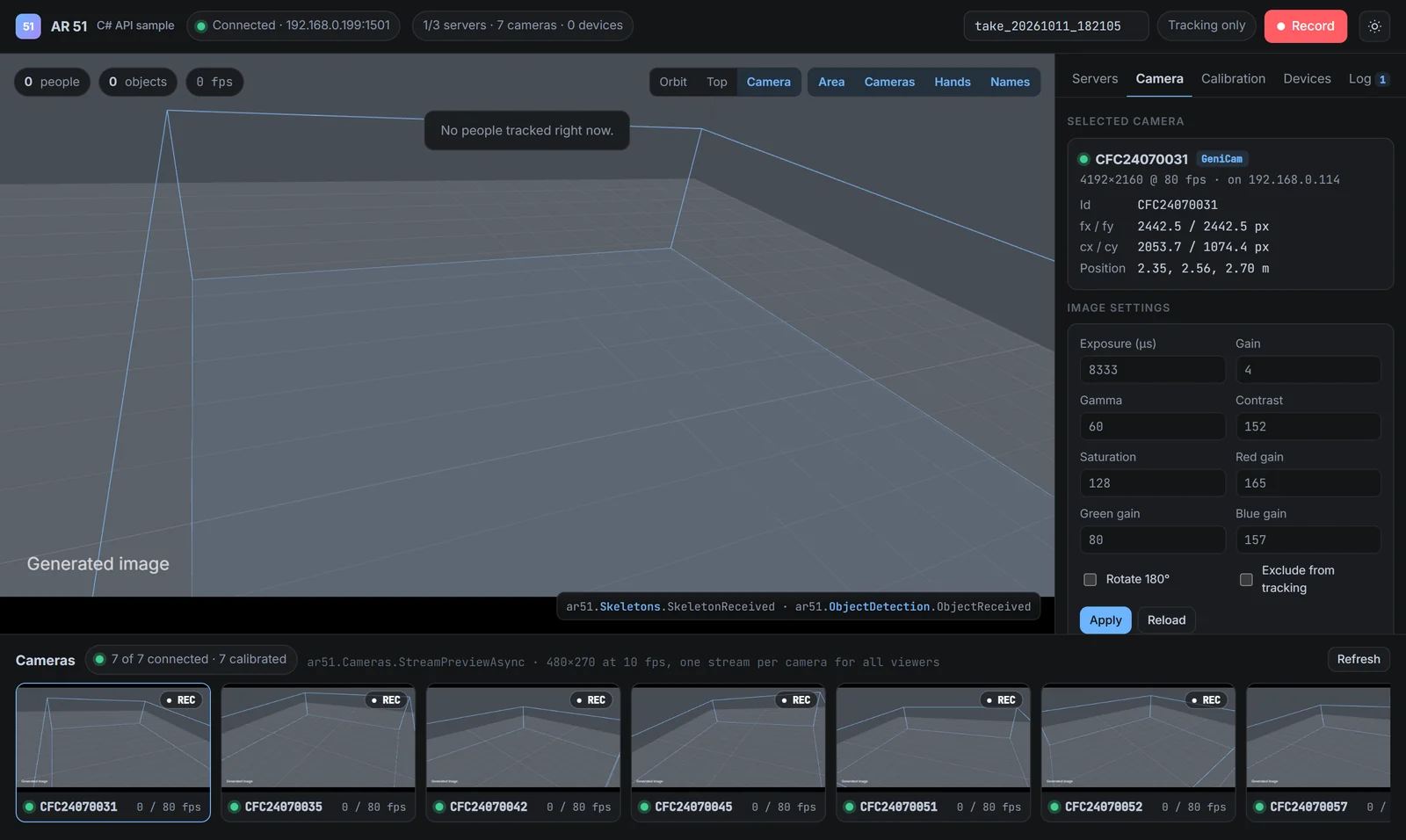
The camera view for one camera, with its calibration values and image settings. The camera image is generated for this page.
Settings
In appsettings.json:
| Setting | Default | Meaning |
|---|---|---|
AR51:Host | null | The AR 51 server's address. null finds it on the local network. |
AR51:LiveFrameRate | 30 | How many times a second skeletons and objects are sent to the browsers. |
AR51:ServerStatusInterval | 00:00:02 | How often each server's status is read. |
Urls | http://localhost:5051 | Where the app listens. Only this computer can open it. |
What each part uses
| Part of the page | AR51.Net calls |
|---|---|
| Connection | IAR51Client.StartAsync, State, ServerEndPoint, ConnectionStateChanged |
| 3D view: people, hands, objects | Skeletons.SkeletonReceived, ObjectDetection.ObjectReceived |
| 3D view: cameras; camera view | Cameras.GetCamerasAsync (CameraCalibration: WorldToCamera, Fx, Fy, Cx, Cy) |
| Camera strip, camera view image | Cameras.StreamPreviewAsync |
| Servers tab | Servers.Servers, GetStatusAsync, LaunchServerAsync, QuitServerAsync, ForceQuitServerAsync, RelaunchServerAsync, StartTrackingAsync, StopTrackingAsync, ServersChanged |
| Camera tab | Cameras.GetSettingsAsync, SetSettingsAsync, StartAutoTuneAsync, CancelAutoTuneAsync, auto-tune events |
| Calibration tab | Calibration.StartCalibrationAsync, StopCalibrationAsync, calibration events, GetCaptureBoundsAsync, SetCaptureBoundsAsync |
| Devices tab | Devices.Devices, DevicesChanged, Skeleton.DeviceId |
| Record button | Recording.StartRecordingAsync, StopRecordingAsync, RecordingStateChanged |
| Log tab | Every event above, as it arrives |
How it's built
| File | Role |
|---|---|
Program.cs | Creates one IAR51Client for the whole app and wires everything up. |
AR51Connection.cs | Starts the client with the app and stops it at shutdown. |
SystemEventRelay.cs | Pushes every AR 51 event to the browsers over SignalR. |
LiveFrameBroadcaster.cs | Keeps the latest skeleton of each person and sends all of them 30 times a second. The skeleton handler only stores a reference, because it runs on the receiving thread for every skeleton. |
ServerStatusMonitor.cs | Reads every server's status every 2 seconds, and right after an action. |
PreviewBroadcaster.cs | One preview stream per camera and size, shared by every browser that shows it, and stopped when nobody watches. All previews of a browser travel over one WebSocket, which avoids the browser's limit of 6 connections per server. |
Endpoints.cs | The REST API: one endpoint per action, each a thin call into AR51.Net. Errors become HTTP errors with the server's reason. |
wwwroot/ | The page: plain HTML, CSS and JavaScript, with three.js for 3D. Libraries are bundled in wwwroot/lib. |
:::tip Camera previews cost bandwidth Each preview stream uses the AR 51 system's network. The dashboard opens one stream per camera, shared by all browsers, and streams only the camera tiles that are on screen. Do the same in your own app. :::
Next steps
- Use it in your app — the hosting, threading and relay patterns this sample uses
- Cameras — previews, settings and auto-tune
- Calibration — what happens to tracking while a calibration runs
- API reference