Mocap-Studio – Registering Tracked Objects
Use Mocap Studio to register real-world objects and track them as interactive objects inside the scene.
Table of contents
- Introduction
- Prerequisites
- Adding a New Tracked Object
- Importing a Custom Model
- Fixing Scale in Blender
- Re-importing the Corrected Model
- Aligning the Model
- Registering the Object
- Using the Tracked Object
- Removing an Object
Introduction
This guide explains how to register a real-world object in Mocap Studio using object detection and a custom 3D model. Once registered, the object becomes a tracked entity that can be moved, rotated, and interacted with in real time.
The example used in this guide is a wooden chair tracked using markers.
Prerequisites
- Camera colors and markers are already configured correctly.
- Stable markers are clearly detected in 3D space.
- Markers are placed on the real object.
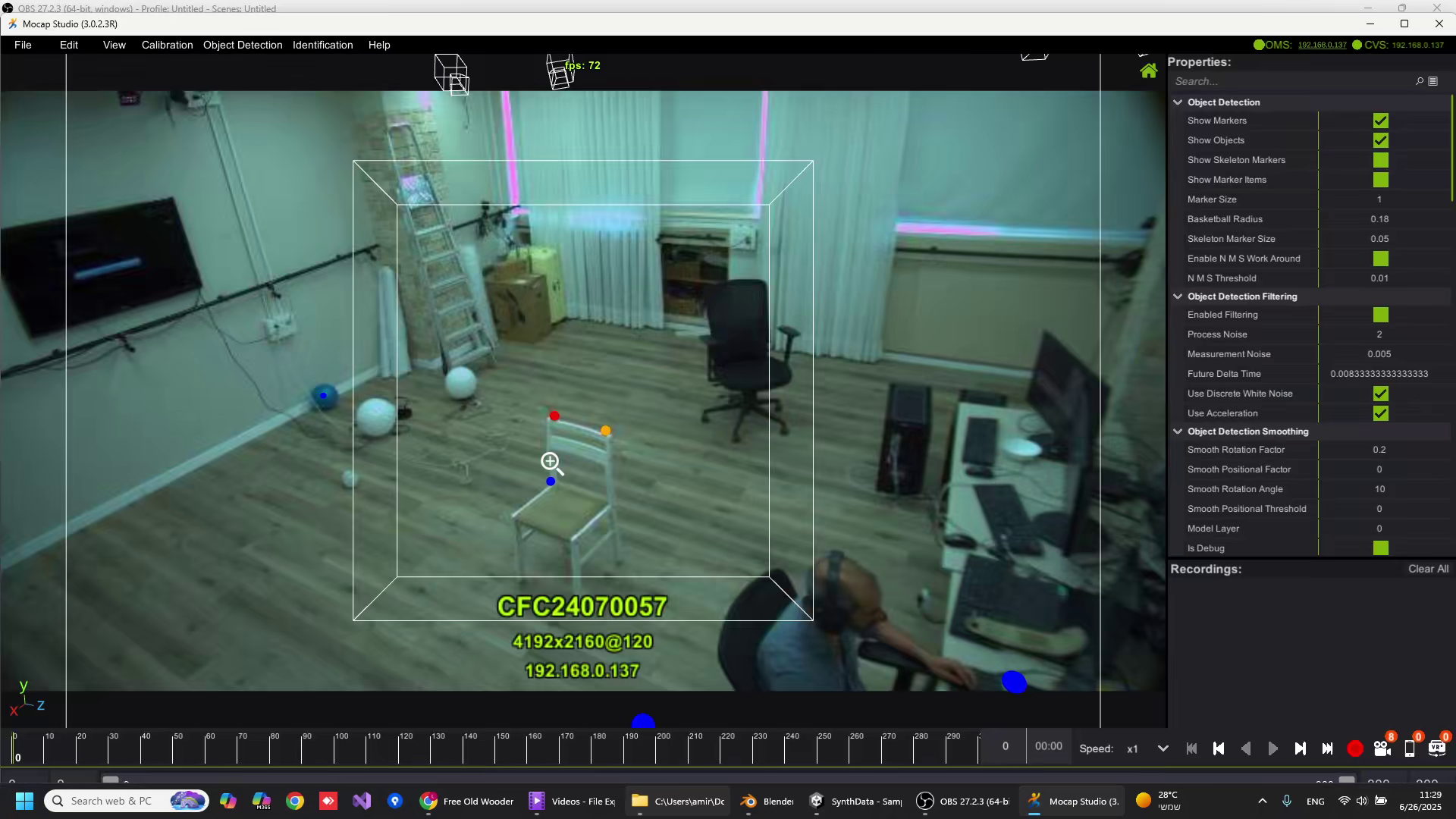
- The object is placed near the center of the capture volume.
- Marker balls within 1 meter from the object’s center are considered valid.
Adding a New Tracked Object
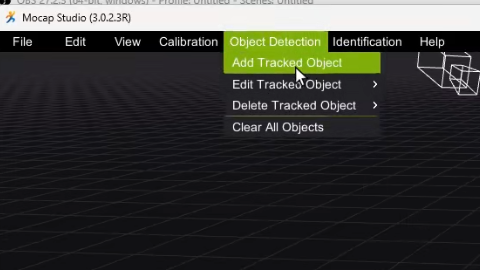
Open Object Detection
- Open Mocap Studio
- Click Object Detection
- Select Add Track Object
Importing a Custom Model
Mocap Studio includes several built-in object models, but custom models can also be used.
Import FBX
- Select Import FBX

- Choose the FBX file from disk
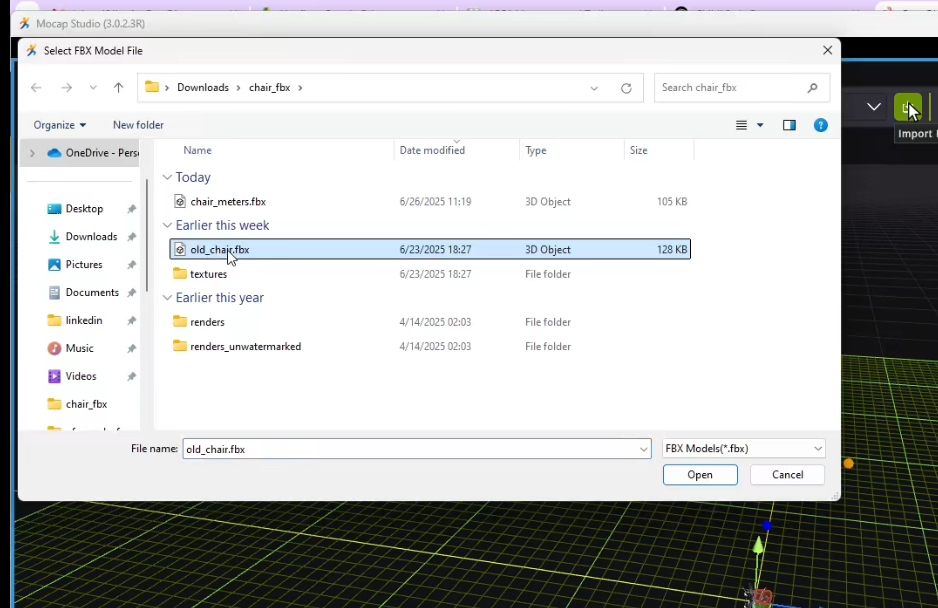
- The model may appear extremely large
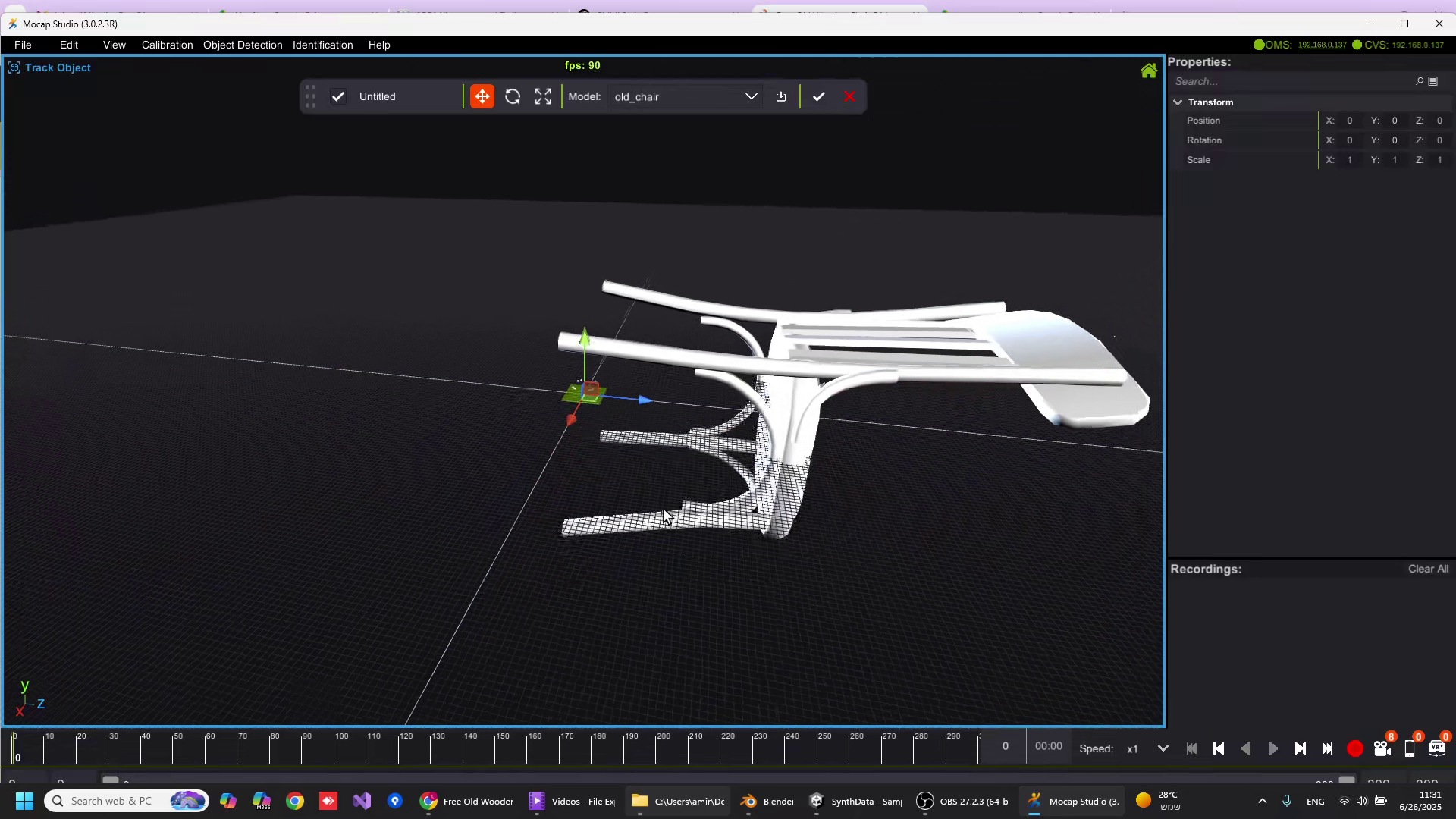
This usually means the model was authored in centimeters instead of meters.
Important
Do not use the scale controls inside Mocap Studio to fix this.
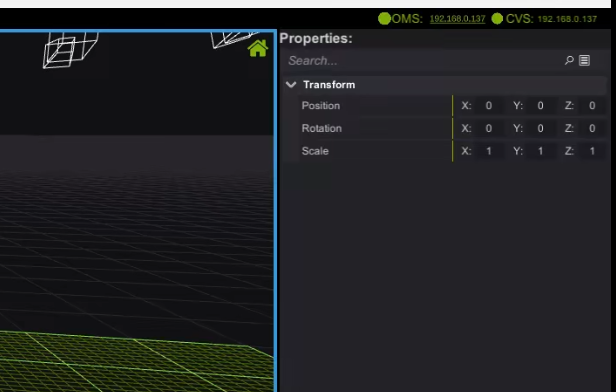
Fixing Scale in Blender
- Open the FBX in Blender
- Select the model
- Change scale from
1→0.1 - Export the FBX again

Re-importing the Corrected Model
Re-import the corrected FBX into Mocap Studio.
The model should now appear at the correct size.
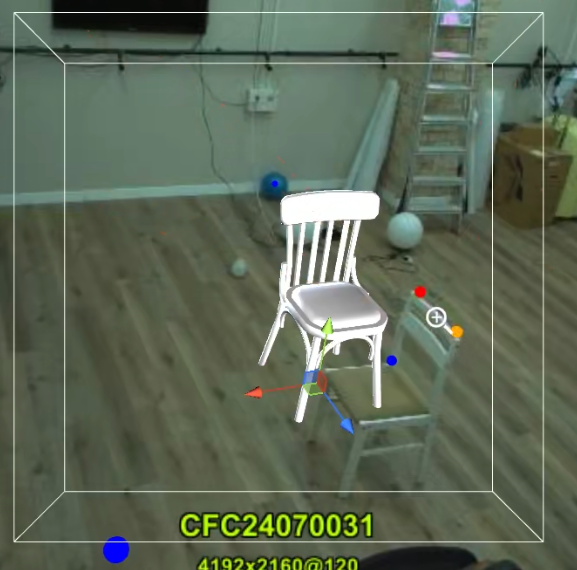
Aligning the Model
Move and Rotate
Use the manipulator to position and rotate the model.
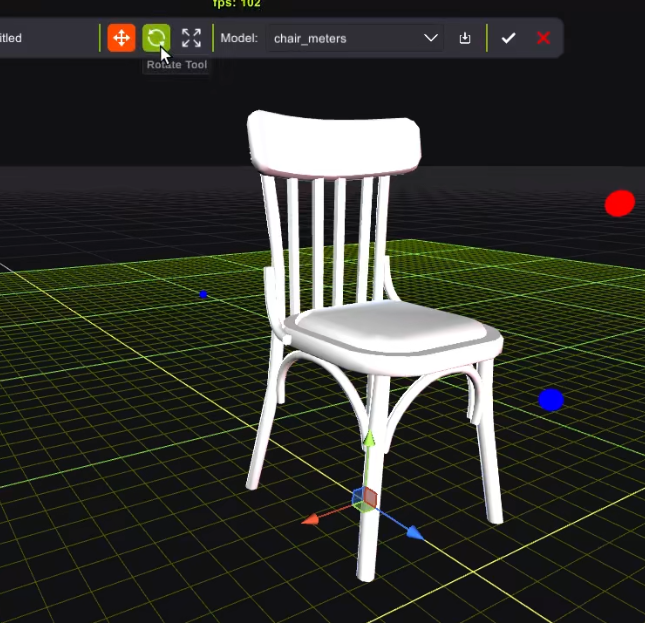
Camera Overlay Alignment
- Double-click the camera feed to enable overlay view
- Use it to precisely match the real object
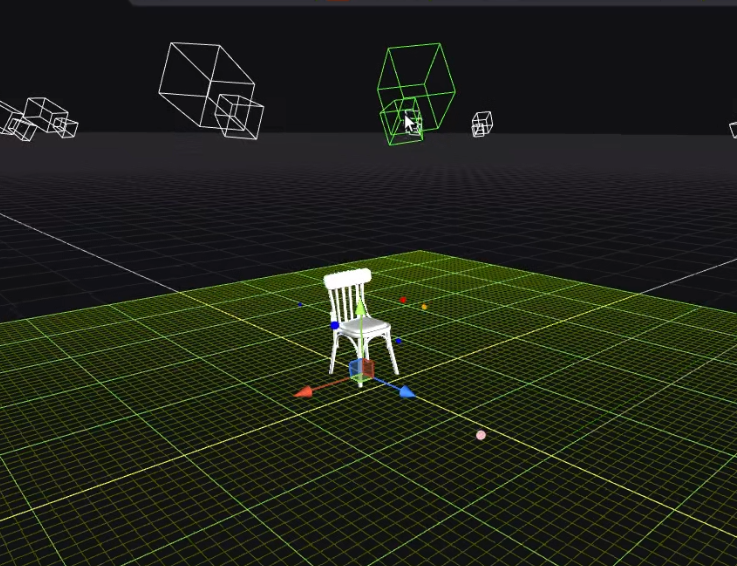
Registering the Object
- Rename the object
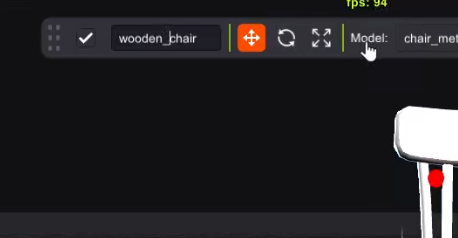
- Click Apply

The object is now registered.
Using the Tracked Object
Once registered:
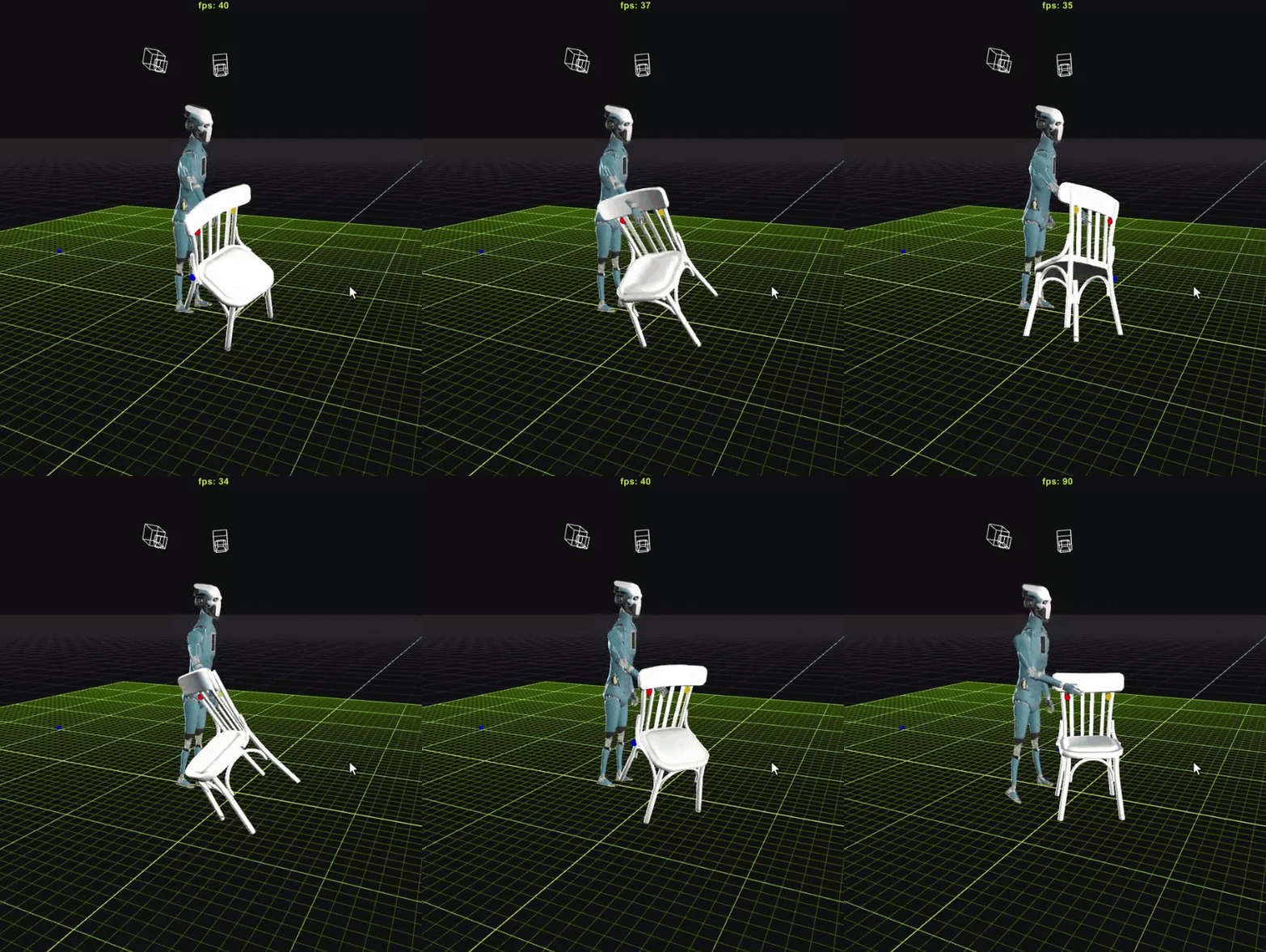
- The object becomes part of the virtual scene
- Any movement or rotation of the real object is mirrored
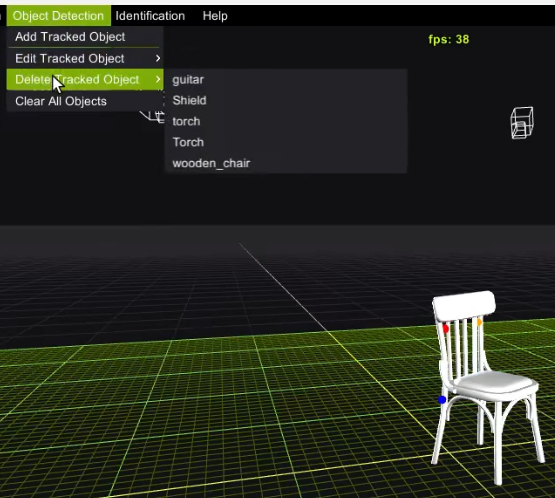
Removing an Object
If the result is not satisfactory, the object can be deleted and re-registered at any time.